Draft a proposal
You have a talk idea and a conference form full of fields, each with its own limit and its own reviewers' expectations.
/cfp:draft walks you from the idea to finished texts in one conversation in Claude Code.
It interviews you about your talk, drafts every form field with you, lets a simulated program committee score the result, checks it against the conference’s rules, and ends at the paste view.
Nothing is ever submitted: you paste the texts into the conference form yourself.
The flow has twelve steps, and cfp saves your work at every one of them. Until Step 4b, that work is your talk; from Step 4b on, it’s a proposal you can resume by its id (see Resume a draft).
This page follows one example from start to finish.
Ada Example of Example Corp wants to talk about PodDisruptionBudgets during node drains, and she drafts for the kubecon-eu-2027 edition of KubeCon + CloudNativeCon as a practice run.
The terms talk, proposal, profile, and event are explained in Using cfp.
If you haven’t set up your store yet, start with Install and first run.
Start /cfp:draft
/cfp:draft takes five optional arguments.
Each one settles something up front:
--profile <id>-
the conference profile to use.
--event <id>-
the edition of that conference.
--talk <id>-
a talk from your store to start from.
--from <path or URL>-
a local file or a public web page with existing material about your talk.
--proposal <id>-
a draft to resume (see Resume a draft).
Without --proposal, cfp first looks for proposals in draft status.
When it finds some, it asks whether you want to resume one of them or start a new one.
-
In Claude Code, start the draft for Ada’s practice run:
/cfp:draft --profile kubecon --event kubecon-eu-2027Check:
cfpeither asks whether to resume one of your drafts or, when you have none, warns that the CFP ofkubecon-eu-2027has closed and asks you to pick a session type.
cfp asks one question at a time, so the conversation moves in small steps.
The flow at a glance
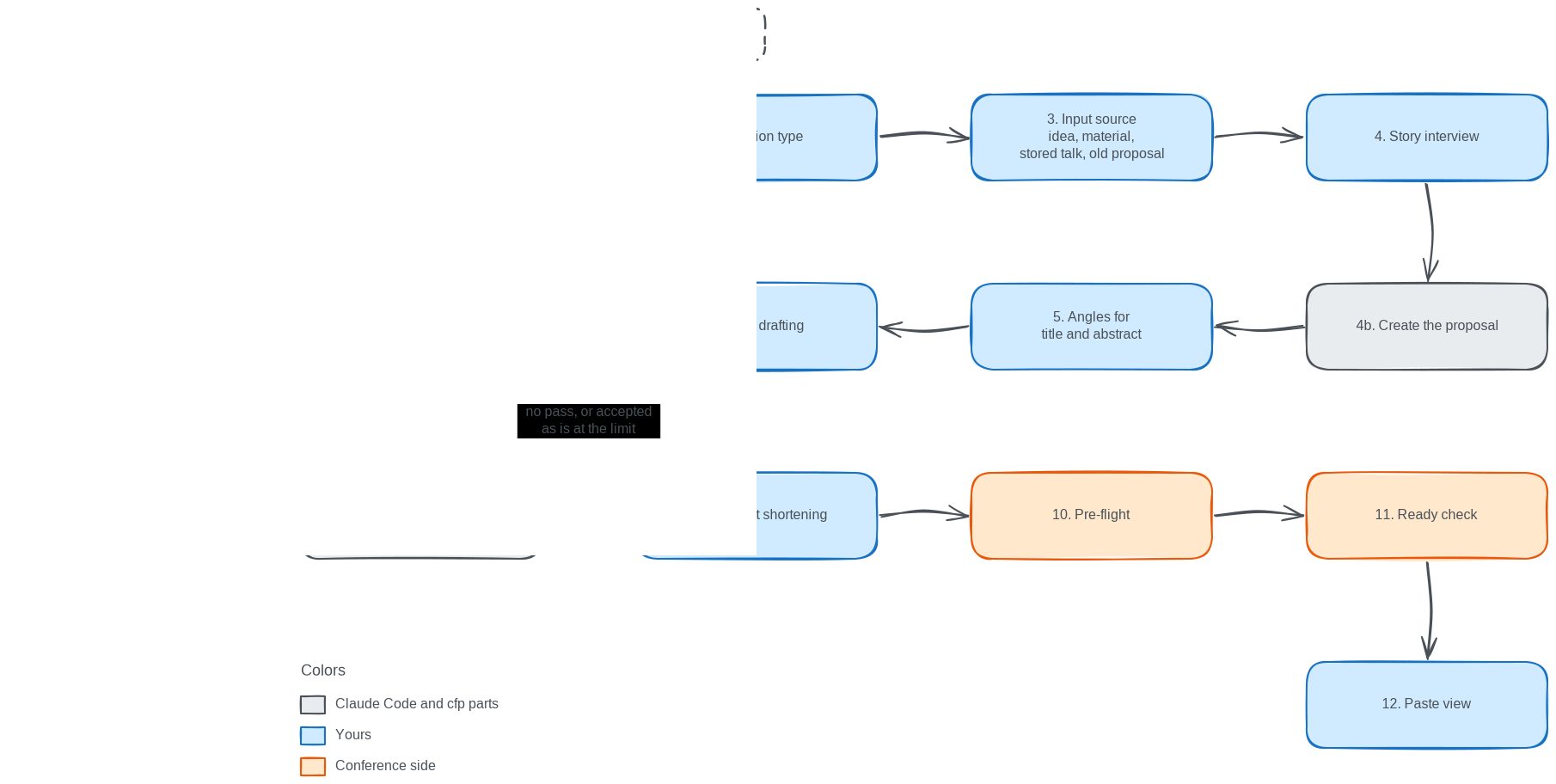
Steps 1 and 2 pick the profile, the event, and the session type, Steps 3 and 4 build up your talk, and Step 4b turns it into a proposal for the chosen edition.
From Step 4b on, every step saves to that proposal’s id.
Step 7 is a loop: when the committee review says revise, you choose which suggestions to apply, cfp rewrites and saves those fields, and another round runs.
When the loop reaches your configured number of review rounds without a pass, you choose how to go on.
"Continue" runs another round.
"Accept as is" goes on without a pass, which also means the voice pass in Step 8 is skipped.
"Park" stops the flow, and /cfp:draft --proposal <id> resumes it later.
Step 1: profile and event
cfp lists your profiles with your default profile first and asks you to pick one.
It skips that question when you gave --profile or when your store has only one profile.
Then it shows the profile’s events with their names and the days until the CFP closes, unless you gave --event.
/cfp:init copies the shipped KubeCon + CloudNativeCon profile into your store, events included, so kubecon-eu-2027 is already there.
When the CFP has closed
The CFP of kubecon-eu-2027 closed on 2026-10-11.
When an edition’s CFP close date is before today, cfp warns you that the deadline has passed.
Drafting goes on anyway, because you might be drafting for a future edition or, like Ada, practicing.
When your edition is missing
What if the edition you’re aiming for isn’t in the list?
cfp offers two ways to add it without leaving the draft:
-
Research. cfp runs the
cfp:profileskill withrefresh <profile> --event <id or URL>, which writes the edition’s override withapproved: falseand asks you to approve it section by section. Refresh a profile and update shipped ones explains that review. -
Manual entry. cfp asks you, one question at a time, for the edition’s name, location, start and end dates, CFP open and close dates, notification date, tracks, and submission limit. An edition you enter by hand counts as approved.
Step 2: session type and co-speakers
cfp lists the profile’s session types with their names, durations, and the minimum and maximum number of speakers, and asks you to pick one.
Ada picks Session Presentation: 30 minutes, one or two speakers.
Some session types need more than one speaker, such as the Panel Discussion with three to five.
When you pick one of those, cfp tells you that a solo speaker can’t fill it and asks whether you have co-speakers.
Answer no, and you’re back at the list.
Answer yes, and cfp asks for each co-speaker as "Name, Company", one question per speaker, until you say you’re done or the session type is full.
It can also ask for their genders, which the all-men rule needs: KubeCon + CloudNativeCon doesn’t accept a session with three or more speakers who all identify as men.
unknown is a valid answer, and it counts as unknown, not as someone who isn’t a man.
cfp keeps both lists until Step 4b and stores them on the proposal there.
Step 3: where your talk comes from
cfp asks which input to start from, unless you gave --from or --talk:
- One-line idea
-
You type the idea, and the interview in Step 4 fills in the rest. Ada’s idea: node drains still drop requests even with PodDisruptionBudgets in place, and she wants to show how to size budgets and pair them with preStop hooks and readiness probes.
- Existing material
-
With
--from <path or URL>, cfp reads a local file or fetches a public web page, never a page behind a login. It pulls out the problem, the contribution, the takeaways, personas, projects, and earlier outings of the talk into a pre-filled story and shows it to you. Step 4 then asks only about the gaps. - Existing talk
-
cfplists your stored talks, you pick one, and Step 4 asks about whatever it’s still missing. - Existing proposal
-
cfplists your proposals and you pick one. It reuses that proposal’s talk and shows you its old title, abstract, and reviewer-only text for reference, without copying them blindly. When that proposal was rejected or withdrawn, cfp doesn’t record it as an outing where you presented the talk.
Step 4: the story interview
As soon as there’s a title, cfp creates the talk in your store, or updates it when you started from one. A talk’s story has five sections: Problem, Contribution, Takeaways, What is new, and Story notes. The talk also keeps lists of personas, projects, outings, resources, and source material.
cfp then checks which sections are still empty and whether personas are missing, and asks one question for each gap:
-
Problem: what hurts, and for whom.
-
Contribution: what you built, changed, or measured.
-
Takeaways: three concrete things an attendee can do afterwards.
-
What is new: compared with existing talks and docs.
-
Story notes: the hard parts, the surprises, and the open questions.
-
Personas, as roles, when the talk has none yet.
It saves after every answer and repeats the check until the story is complete. Then it asks once about earlier outings of the same material (event, date, link, and whether you presented or only submitted it), and once whether to link resources from your store.
Step 4b: the proposal is created
This step asks you nothing.
cfp creates the proposal from the talk, the profile, the event, and the session type.
There’s one proposal per talk and edition, and its id joins the two: Ada’s talk safe-node-drains becomes the proposal kubecon-eu-2027—safe-node-drains.
If a proposal for this talk and edition already exists, cfp resumes it instead of failing.
Co-speakers from Step 2 are stored on the proposal now.
Step 5: angles for title and abstract
The same story can be pitched from different directions.
cfp shows you two or three candidates in one message, built from three kinds of angle:
-
Problem-first opens with the pain and promises the fix.
-
Story-driven tells what was built or broken and the honest lessons.
-
Contrarian challenges a common belief and backs the challenge with evidence.
Each candidate comes with its label, a title with its character count against the title limit, an abstract with its count against the abstract limit, and a one-line note on its hook. The abstracts follow a two-sentence rule: the first two sentences say who the talk is for, what problem it addresses, and what the audience gets.
Pick one, or ask for another round.
cfp asks what to change first and replaces only the candidates you rejected.
Your choice is saved as the proposal’s angle, title, and abstract.
Step 6: the remaining fields
cfp now works through the rest of the form, field by field, in the order of the profile.
It skips the title and abstract you already saved.
Every generated text reaches you the same way, and cfp never saves one you haven’t seen in full:
-
a heading with the field’s label;
-
the complete drafted text;
-
its count as
<chars>/<limit> chars, marked approximate when the limit isunverified; -
a question with three answers: save, change something, or regenerate.
After a save, cfp shows the count and the field’s status. When the text is over its limit, cfp offers to shorten it right away.
The fields don’t all work the same way.
Choices
Choice fields and yes/no fields are never generated: cfp asks you. The track options come from the event’s track list, the audience levels from the field’s options, and the format starts out as the name of your session type. A track you name that isn’t on the event’s list is still saved as you typed it, and pre-flight flags it later.
The relevance field
The relevance field is reviewer-only: the committee reads it, and attendees never see it.
The profile names it as its relevance_field: on the current KubeCon form it’s "Value to the community" (value_to_community), on older ones benefits, and it’s empty when the form has no such field.
cfp drafts it from its guidance on that field: who benefits, persona by persona; why now; what is new compared with earlier talks; your evidence and credentials; and what data or case study the session shows.
The one hard rule: it never restates the abstract.
cfp runs the guidance’s checklist before it shows you the text.
Previously presented
cfp builds this field from your talk’s outings.
When you presented the talk inside the same conference family in the last twelve months, the text describes what’s significantly different now, such as new data, scope, or results, and mentions a link to the slides or video.
Otherwise it states plainly that the talk hasn’t been presented before.
Project lists
The current KubeCon form has one field for CNCF and open source projects (cncf_oss_projects); older profiles split it into cncf_projects and open_source_projects.
cfp builds the list from your talk’s projects and shows it exactly as it will be saved, one project per line with its link where known.
Then you confirm it or correct names and links.
The resources field
For the field with the id resources, cfp lists your speaker resources, offers recordings first, and recommends one.
That’s because the Speaker criterion reaches its top level only with a recording.
You pick, up to the form’s maximum when its guidance names one.
cfp stores your choice and writes one Title: link line per resource into the field.
When the field is free text, as it is on the KubeCon form, cfp shows you those lines and asks whether to add anything the guidance asks for beyond your stored resources, such as recordings of your co-speakers.
No recording in your store?
cfp says so and suggests adding one later with /cfp:bio resource add.
Other text fields
Every other text field is drafted from its own guidance and goes through the same show, count, and ask sequence.
The bio
When the profile says the form has no speaker bio, cfp tells you in one line and attaches none. Otherwise it lists your bio variations, each with its length against the bio limit (500 characters on the KubeCon form), and asks which one to use. Before attaching it, cfp shows the complete text with its count and asks whether to attach it, shorten it, or pick another. Shortening changes only the proposal’s bio snapshot; the stored variation stays as it is. When your store has no bios yet, cfp offers to write one with you and then continues the draft. Bios and speaker resources covers bios on their own.
Steps 7 to 12: review, polish, and the paste view
The rest of the flow checks and polishes what you drafted. The pages linked from each step cover them in detail.
- Step 7, the committee review loop
-
cfpruns a simulated program committee review on the proposal, and each round returns a verdict and suggestions. Onrevise, you pick the suggestions to apply (all, some by number, or none), and cfp rewrites those fields, shows them with their counts, and saves them. At the round limit without a pass, cfp lists the remaining weaknesses and asks you to continue, accept the proposal as is, or park it. If you accept it as is, the proposal stays indraft, becausereadyneeds a passing verdict. See Committee review and voice pass. - Step 8, the voice pass
-
Only after a passing verdict, cfp runs the cc-prose humanizer with the voice profile from your config on the title, the abstract, the relevance field when the form has one, and the bio snapshot when the form has a bio. You see each rewrite in full with its count and keep it or the previous version. Without cc-prose, cfp prints "Voice pass skipped: prose plugin not installed" and moves on. There’s no second committee review after the voice pass. Committee review and voice pass explains it.
- Step 9, over-limit shortening
-
For every field that’s over its limit, cfp shows the count and the limit and offers to shorten it. A field you decline to shorten stays flagged in the paste view. See Pre-flight, counts, and the paste view.
- Step 10, pre-flight
-
cfpchecks the proposal against the profile’s rules, then makes two checks that need judgment: the audience level check and the profile’s custom rules. It shows every finding with its severity,disqualifyorwarn, and helps you fix what can be fixed in the form fields, for example by picking a track from the event’s list. Pre-flight, counts, and the paste view goes through the findings. - Step 11, ready
-
When the ready check passes, cfp sets the proposal to
ready. Otherwise it lists the reasons, such as no passing review or a disqualifying finding, and the proposal stays indraft./cfp:status set <id> readycan force it later; Track a proposal’s status has the details. - Step 12, the paste view
-
cfpprints the paste view and the path of the proposal file, and reminds you that nothing was submitted. You paste the fields into the conference form and record the submission with/cfp:status set <id> submitted. Pre-flight, counts, and the paste view shows what the paste view contains.
Resume a draft
Parked the proposal after the review loop, or closed Claude Code somewhere after Step 4b? The proposal is saved, and you resume it with its id:
/cfp:draft --proposal kubecon-eu-2027--safe-node-drainsYou can also run /cfp:draft without arguments.
When you have drafts, cfp lists them with their id, title, event, and last update, and asks whether to resume one or start a new one.
Stopped before Step 4b, say halfway through the story interview? Then there’s no proposal yet, but your talk is saved. Start again with the talk, and Step 4 asks only about the gaps:
/cfp:draft --profile kubecon --event kubecon-eu-2027 --talk <talk-id>Or run /cfp:draft and pick "Existing talk" in Step 3.
cfp works out where to continue from what the proposal already has, and goes to the first step whose data is missing:
-
no title or abstract: Step 5, after checking that the talk is complete, which may send you back to Step 4;
-
a required field is missing, or the bio is empty on a form that has one: Step 6, for the missing parts only;
-
no review rounds yet, a stale review (see Edit a ready proposal), or a last verdict of
revisewith rounds left: Step 7; -
a passing verdict and no voice pass yet: Step 8;
-
fields over their limit: Step 9;
-
no pre-flight yet, or one older than the proposal’s last update: Step 10;
-
still
draftwith a passing review and a clean pre-flight: Step 11; -
anything else: Step 12.
cfp tells you which step it resumes at and why before it asks the next question.
Want to see your open drafts from your shell? The store CLI ships in your cc-cfp clone.
Check: in your cc-cfp clone, the list of draft proposals includes Ada’s proposal.
python3 -I cfp/scripts/cfp_store.py proposal list --status draftEdit a ready proposal
Automatic ready in Step 11 needs a passing committee review and a clean pre-flight for the text that was reviewed.
So when a step saves a field, the bio snapshot, or the metadata of a ready proposal, the proposal goes back to draft.
cfp tells you so and runs the committee review and pre-flight again.
Behind the scenes, the edit clears the stored pre-flight results and marks the last review as stale, while the review history stays. That stale review is what sends a resumed draft back to Step 7. Edits to a proposal that’s still a draft, such as the voice pass or shortening, don’t mark the review as stale.
Resuming a ready proposal follows the same order; with no field over its limit and a current pre-flight, it goes to Step 12, the paste view.
/cfp:draft without arguments lists only drafts.