Pre-flight, counts, and the paste view
A strong abstract doesn’t help much when the track is wrong or the title is nine characters over its limit.
The pre-flight catches that kind of problem before you open the conference form.
It checks your proposal against the conference’s rules, counts the characters of every field against its limit, and tells you whether the proposal can become ready.
At the end, the paste view gives you every field in form order with its count, ready to copy.
This page follows Ada Example’s practice proposal kubecon-eu-2027—safe-node-drains from Draft a proposal.
The terms proposal, profile, pre-flight, and paste view are explained in Using cfp.
What the pre-flight checks
Every conference profile lists its rules. Each rule has a kind, a severity, a text in the conference’s own words, and a source, usually the conference page it comes from. The severity is one of two values:
-
disqualify: the pre-flight fails, and the proposal can’t becomereadyautomatically. -
warn: you see the finding, but it doesn’t block anything.
cfp computes six kinds of rules from what your store holds:
- Submission limit
-
How many of your other proposals for the same event already have the status
submitted,accepted,rejected, orpresented. When that number reaches the limit, adding this one would exceed it. An event’s ownsubmission_limitwins over the number in the profile rule. If some proposal files can’t be read and the limit isn’t reached, cfp counts the rest and gives you awarnfinding that names the skipped files. - Repeat within months
-
Whether the talk was presented at the same conference within the last 12 months (or the number of months the rule sets). When the proposal’s
previously_presentedfield has any text, the finding drops towarn; cfp doesn’t judge the text, and the finding asks you to make sure the differences are significant. - Track
-
Whether the proposal’s track is on the event’s track list. An event without a track list skips this rule.
- Speaker count
-
Whether you plus your co-speakers fit the session type’s minimum and maximum.
- All-men panel
-
For sessions with three or more speakers (or the minimum the rule sets), whether every speaker identifies as a man. Your gender comes from
speaker_genderin your config, your co-speakers' from the proposal. When the known genders are all men and some are unknown, the finding is awarnthat asks you to fill them in. - Multi-company panel
-
For session types that need three or more speakers, whether all speakers come from one company.
cfpreads your company fromspeaker_companyin your config and your co-speakers' companies from entries written as "Name, Company". An unknown company gives awarnfinding instead.
The shipped KubeCon + CloudNativeCon profile has one rule of each of these kinds, all with the severity disqualify.
Its submission limit is 3 proposals per event, and its repeat rule looks back 12 months and reads the previously_presented field.
Its seventh rule, vendor-pitch, is of a kind cfp can’t compute; more on that below.
Checks that need judgment
Two checks can’t be computed from stored values.
Claude makes them by reading your proposal, and both /cfp:check and /cfp:draft follow the same instructions, so you get the same verdict from either.
The audience level check
cfp compares your abstract with the audience level you picked, using the levels the conference’s form offers.
On the KubeCon form those are Any, Beginner, Intermediate, and Advanced; another form can word them quite differently.
The question is which offered level the abstract really serves: what it assumes you already know, and whether it promises a first look or depth.
It’s a mismatch only when another level clearly fits better, and when in doubt, there’s no mismatch.
A mismatch gives you a warn finding that names the better level as the form words it.
When the abstract or the level is still empty, or the form has no audience level field, cfp skips this check and says so.
Custom rules
Some conference rules fit none of the six kinds above.
A profile records them as custom rules: the conference’s text plus a severity, with no evaluator of its own.
The shipped KubeCon profile has none, so for Ada’s proposal there’s nothing to judge here.
A second conference: what changes shows a profile that has some.
Claude judges each custom rule against your proposal and reaches one of four verdicts:
violated-
The stored data shows the proposal breaks the rule. A rule about incomplete proposals is violated while a required field is still empty, and a style rule is violated when a drafted field shows what it forbids. The finding takes its severity and source from the profile, so a violated
disqualifyrule blocksreadyjust like a computed one. met-
The stored data shows the proposal satisfies the rule.
does not apply-
The rule is about a session type or a situation your proposal isn’t in.
confirm yourself-
The rule depends on something your store doesn’t hold, such as whether a co-speaker agreed to travel (
cannot tellin the skill’s instructions).
What happens on confirm yourself depends on the severity.
For a warn rule, cfp adds no finding and lists the rule for you to confirm.
For a disqualify rule, cfp quotes the rule text and asks you whether your proposal meets it:
-
yes: no finding. -
no: a finding with the rule’s severity, so the proposal can’t becomeready. -
not sure: awarnfinding saying the rule couldn’t be confirmed.
Vendor pitches
Rules of kind vendor_pitch, like KubeCon’s "No sales or marketing pitches", stay with the committee review.
The pre-flight lists them with the verdict committee review and adds no finding.
Committee review and voice pass explains how the reviewer scores that.
How cfp counts characters
Before counting, cfp turns Windows line endings into plain line breaks and strips whitespace from the start and end of the text. Then it counts Unicode code points, so a German sharp s or an emoji counts as one character.
Each field count gets one of four statuses:
| Status | Meaning |
|---|---|
|
Within a confirmed limit (limit status |
|
More characters than the limit allows. |
|
Within the limit, but the limit itself is approximate (its limit status in the profile is |
|
The field has no limit. |
over wins over unverified: a field that’s too long for an approximate limit is over.
A text exactly at the limit isn’t over.
The speaker bio is counted against the profile’s bio limit, 500 characters with the limit status screenshot on the KubeCon form.
When a profile says the form has no speaker bio (bio_on_form: false), a stored bio snapshot is still counted, but it gets no limit and the status not-on-form.
Want to see the raw counts? The store CLI ships in your cc-cfp clone.
Check: in your cc-cfp clone, the counts for Ada’s proposal include the list of required fields that are still empty.
python3 -I cfp/scripts/cfp_store.py count --proposal kubecon-eu-2027--safe-node-drainsRun the pre-flight with /cfp:check
/cfp:draft runs the pre-flight for you in Step 10, but you can check any stored proposal at any time with /cfp:check.
It works on any status; for a proposal that’s past draft, the result is informational.
-
In Claude Code, check Ada’s proposal:
/cfp:check kubecon-eu-2027--safe-node-drainsWithout an id, cfp lists your proposals with id, title, event, and status, and asks which one to check.
Check:
cfpprints a findings table with rule, severity, finding, and source (or "No rule findings."), then a second table of judged and manual rules in whichvendor-pitchhas the verdictcommittee review. After that come the fields over their limit, the required fields that are still empty, a line about approximate limits when there are any, and the verdict: "Passed: no disqualifying findings" or "Failed: N disqualifying finding(s)". The last line says whether the proposal can becomeready, or lists the reasons why not. -
Pick what to do next.
cfpoffers to open the draft flow for the proposal, to pick a track from the event’s list when the track rule failed, to change the audience level when that check found a mismatch, or to stop.Check: after a track or audience level change, cfp runs the pre-flight again and shows the new findings.
A few things are worth knowing about the findings:
-
Every pre-flight run replaces the stored findings, including the ones from the audience level check and the custom rules. Both judged checks run again each time and add back what still applies.
-
Changing a field of a
readyproposal moves it back todraft; cfp tells you when that happens. -
A repeat finding drops from
disqualifytowarnas soon as the previously-presented field has text, so use that field to explain the significant differences; you edit it through/cfp:draft --proposal <id>. -
A violated custom rule is fixed in the draft flow, or outside cfp when it’s about speakers or the session type.
The same check inside /cfp:draft
Step 10 of /cfp:draft runs the same rules and the same two judged checks.
It shows every finding with its severity, text, and source, then one line per custom rule with its verdict, then the vendor-pitch rules the committee review covers.
Then it helps you fix what you can.
A track finding gets you the event’s track list, a repeat warning an offer to rewrite the previously-presented field, and an audience level warning the choice of a different level or abstract.
For a violated custom rule, it explains the rule and offers to rewrite or draft the field that causes it.
Findings it can’t fix in the form fields, such as the submission limit or the speaker count, get an explanation of what would resolve them.
Shorten over-limit fields
Step 9 of /cfp:draft runs before the pre-flight.
For every field over its limit, and for the bio when it’s over, cfp shows the current count and the limit and offers to shorten it.
You see the shortened text with its new count before it’s saved, and cfp recounts.
This repeats until nothing is over or you decline for a field.
A field you decline stays flagged in the paste view.
/cfp:check doesn’t shorten anything itself; pick "open the draft flow" to get there.
The ready check
A proposal becomes ready automatically only when the ready check finds no reasons against it.
The possible reasons are:
-
no committee review has been recorded yet, or the last verdict isn’t
pass; -
the proposal went back to
draftafter its last passing review (see Edit a ready proposal); -
the pre-flight hasn’t run yet;
-
the pre-flight reported disqualifying findings.
In Step 11, /cfp:draft sets the proposal to ready when the check passes.
Otherwise it lists the reasons and the proposal stays in draft.
You can still force ready later with /cfp:status set <id> ready.
The paste view
The paste view is the last step of /cfp:draft.
It prints every field in the order the form asks for it, with its count, so you can copy one field after another into the conference form.
Nothing is submitted: you paste the fields into the form yourself.
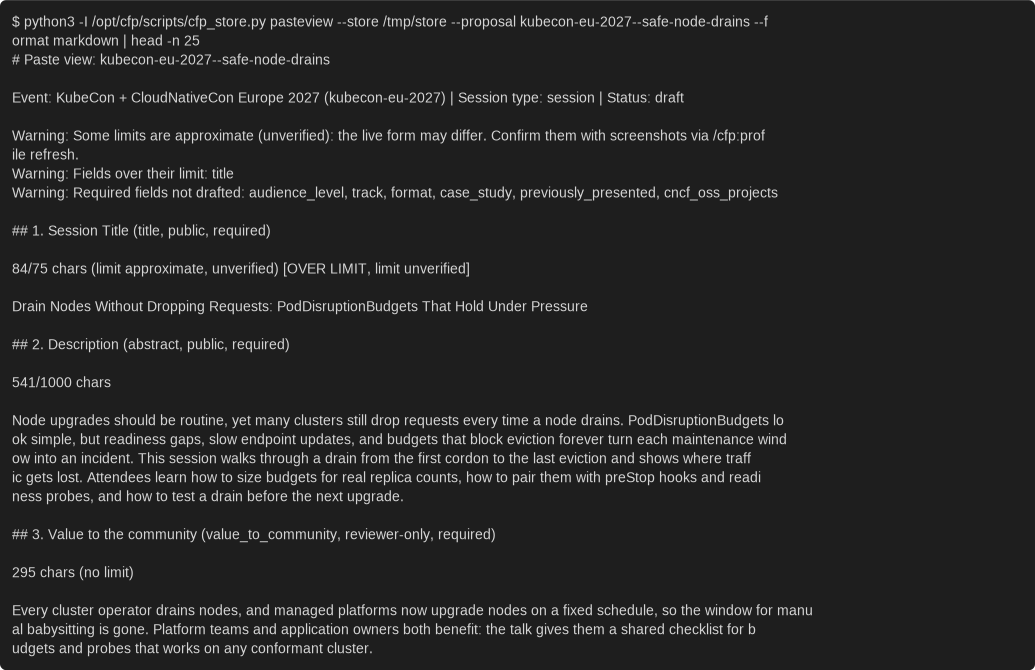
The image shows the top of the paste view for Ada’s proposal, cut after the third field. Here’s what you see, from top to bottom:
- The header
-
The proposal id, then the event name with its id, the session type, and the status, here
draft. - Warnings
-
Up to three lines. One says that some limits are approximate and points you to
/cfp:profile refreshto confirm them with screenshots. One names the fields over their limit, heretitle. One names the required fields that aren’t drafted yet; Ada’s list starts withaudience_levelandtrack. - One section per field
-
The heading gives the position in the form, the label, the field id, whether the field is public or reviewer-only, and whether it’s required or optional. Below it is the count label, then the text, or "(empty)" for a field you haven’t drafted.
The count label has two shapes.
A field with a limit shows <chars>/<limit> chars, followed by "(limit approximate, unverified)" when the limit is unverified.
A field without a limit shows <chars> chars (no limit).
Flags in square brackets follow the count: not drafted, OVER LIMIT, and limit unverified.
In the image, the session title has 84 of 75 characters with an unverified limit, so it carries both OVER LIMIT and limit unverified.
The description has 541 of 1000 characters and no flags.
The reviewer-only "Value to the community" field has 295 characters and no limit.
After the last field, the paste view ends with a speaker bio section: its heading names the bio variation when one is set, followed by the count label, the flags, and the text. When the form has no speaker bio, that section is left out entirely, because there’s nothing to paste.
To see the paste view again later, print it directly with the store CLI’s pasteview command from your cc-cfp clone.
/cfp:draft --proposal <id> reaches the paste view only when no earlier step has missing data; otherwise it resumes at that step.
Check: the paste view of Ada’s proposal starts with its heading.
python3 -I cfp/scripts/cfp_store.py pasteview --proposal kubecon-eu-2027--safe-node-drains --format markdownWithout --format markdown, the CLI prints the same content as JSON.
Record the submission
Once you’ve pasted the texts into the conference form and sent it off there, tell cfp.
Recording the submission matters for more than bookkeeping: a submitted proposal counts toward the event’s submission limit when you check your other proposals for that event.
-
In Claude Code, record the submission:
/cfp:status set kubecon-eu-2027--safe-node-drains submittedAdd
--date <YYYY-MM-DD>when you submitted on another day.Check:
cfpshows the old status, the new statussubmitted, and the date, and reminds you that the plugin never submits anything.
Track a proposal’s status covers the statuses that come after submitted.